Skip to content

News

What’s new in guito

guito's launches and what's new in the app.

November 2026

  1. Improvements and fixes (5)

    9 to 15 November

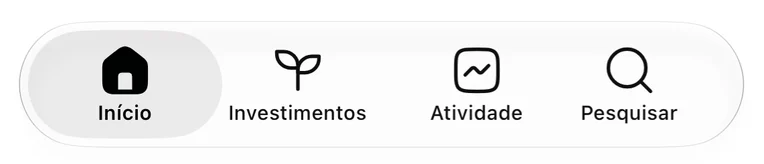
    • On iPhone, search is at the top of every screeniPhone only. On iOS 26 or later, the Search or ask field now sits at the top of Home, Investments and Activity, next to your photo, and is no longer an item in the bar at the bottom. Tap it to search or to ask the agent.
    • Tag several transactions at onceIn Cash flow or in an account, select the transactions (in the app, press and hold one), choose Tag and pick the tags. Each transaction keeps the tags it already had.
    • Each row in a list opens the right page againWeb only. In Safari, clicking a transaction, an account or an investment in a list always opened the last row in the list.
    • See how much your bank hasn’t sent yetWith ActivoBank and Millennium BCP, when the balance already deducts purchases the bank hasn’t sent yet, the account shows how much is still outstanding. The notice goes away once the transactions arrive.
    • Weekend purchases on the day you made themWhen the bank books a transaction days later, the list now shows it on the day it was made, whenever the bank provides that day. The day the bank booked it appears in the transaction’s details, under Booked.
  2. Budgets that count only the accounts you choose

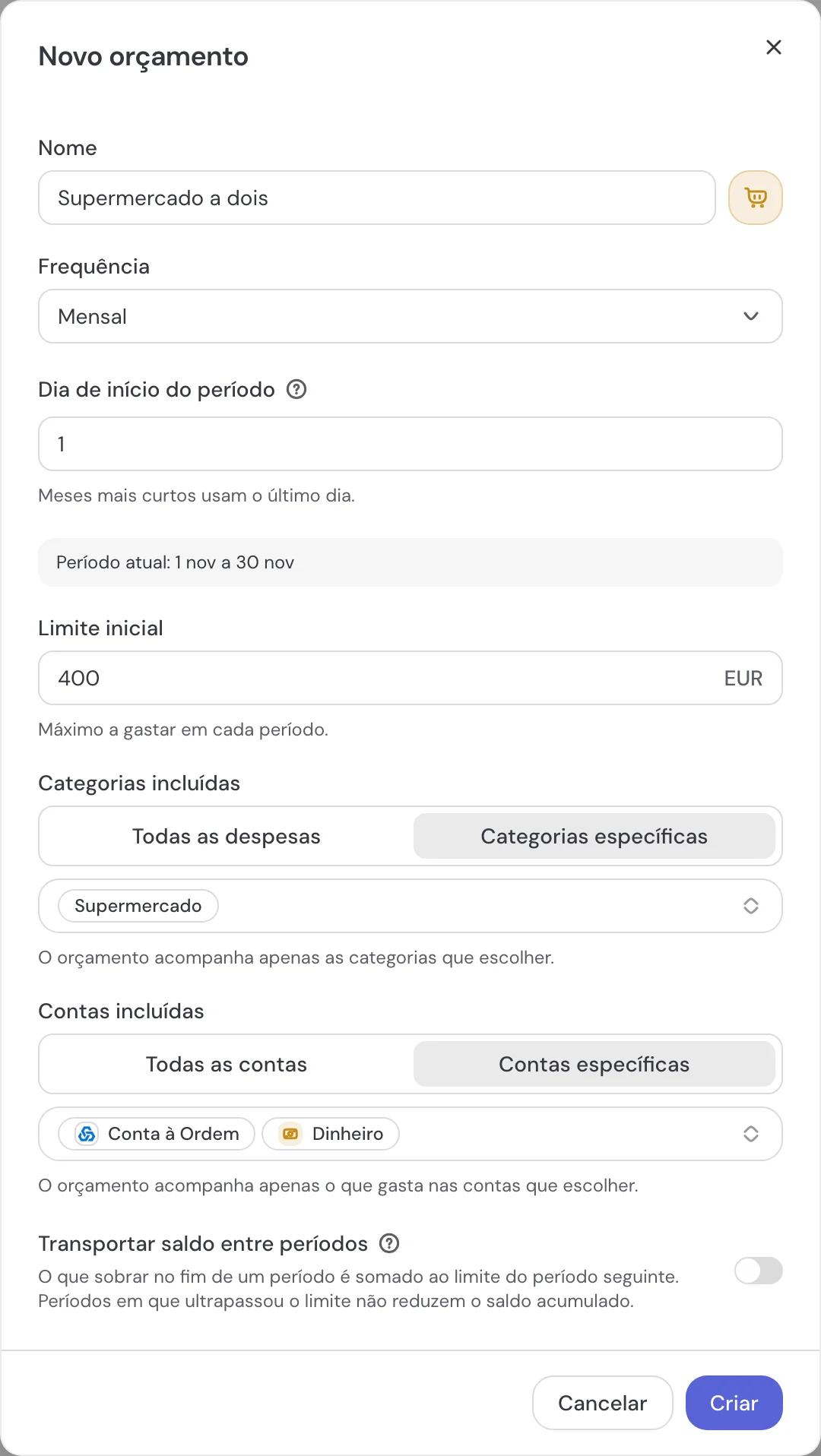
    A budget can count spending from just some of your accounts. A groceries budget on a joint account, for example, leaves out what you pay from your personal one.

    How to use it

    1. In Budgets, create a budget or edit one.
    2. Tap Accounts.
    3. Tap the accounts the budget should count.
  3. See what’s changed, day by day

    Each new feature appears on the day everyone gets it, with what it is, what it’s for and how to use it on the web and in the app. Each week’s improvements and fixes are grouped into one entry.

    How to use it

    1. Tap your photo at the top of Home.
    2. Tap What’s new, above Send feedback.
    3. On a new feature, tap Try it to use it or Learn more to read the help page.
  4. See what a trip cost, with tags

    A tag is a name of your own, such as “Canary Islands trip”, that groups transactions from different categories. The transactions keep their categories, and filtering by the tag shows what it all cost together.

    How to use it

    1. Open a transaction, tap ⋯, then Edit.
    2. Tap Tags, type a name such as Canary Islands trip, then tap Create “Canary Islands trip”.
    3. Tap Save. Then tap the tag on the transaction to see all the ones that have it, and the total.
  5. Track manual investments by quantity and price

    For a share, ETF, fund, bond or crypto you track by hand, you can enter the quantity and price of each purchase, just as you would at a broker. The investment is then worth the quantity times the last price you entered, and you can update that price whenever you like.

    How to use it

    1. In Investments, tap Add, then Add manually.
    2. Choose Stock, ETF, Fund, Bond or Crypto, then tap By units.
    3. Enter the quantity and the Price per unit, then tap Add.
  6. Improvements and fixes (3)

    2 to 8 November

    • The right outstanding balance on a new loan
    • Change a transfer’s category without leaving the listWeb only. When the other side of the transfer isn’t one of your accounts, click Transfer sent or Transfer received in the Cash flow list and pick the category.
    • Fewer transactions wrongly filed as SalaryOn new transactions, money from other people, refunds, pensions and insurance payouts are no longer filed as Salary.

October 2026

  1. Simpler navigation with three tabs

    App only

    The bar at the bottom now holds Home, Investments and Activity, and your photo at the top of Home opens your account and settings, in place of the side menu.

    How to use it

    1. Tap Home, Investments or Activity in the bar at the bottom.
    2. To reach your account and settings, tap your photo at the top of Home.
    3. To search on iPhone, tap the Search or ask field at the top (before iOS 26, tap Search, the last item in the bottom bar); on Android, tap Search at the top.
  2. See how much you have left as the month goes on

    Web only

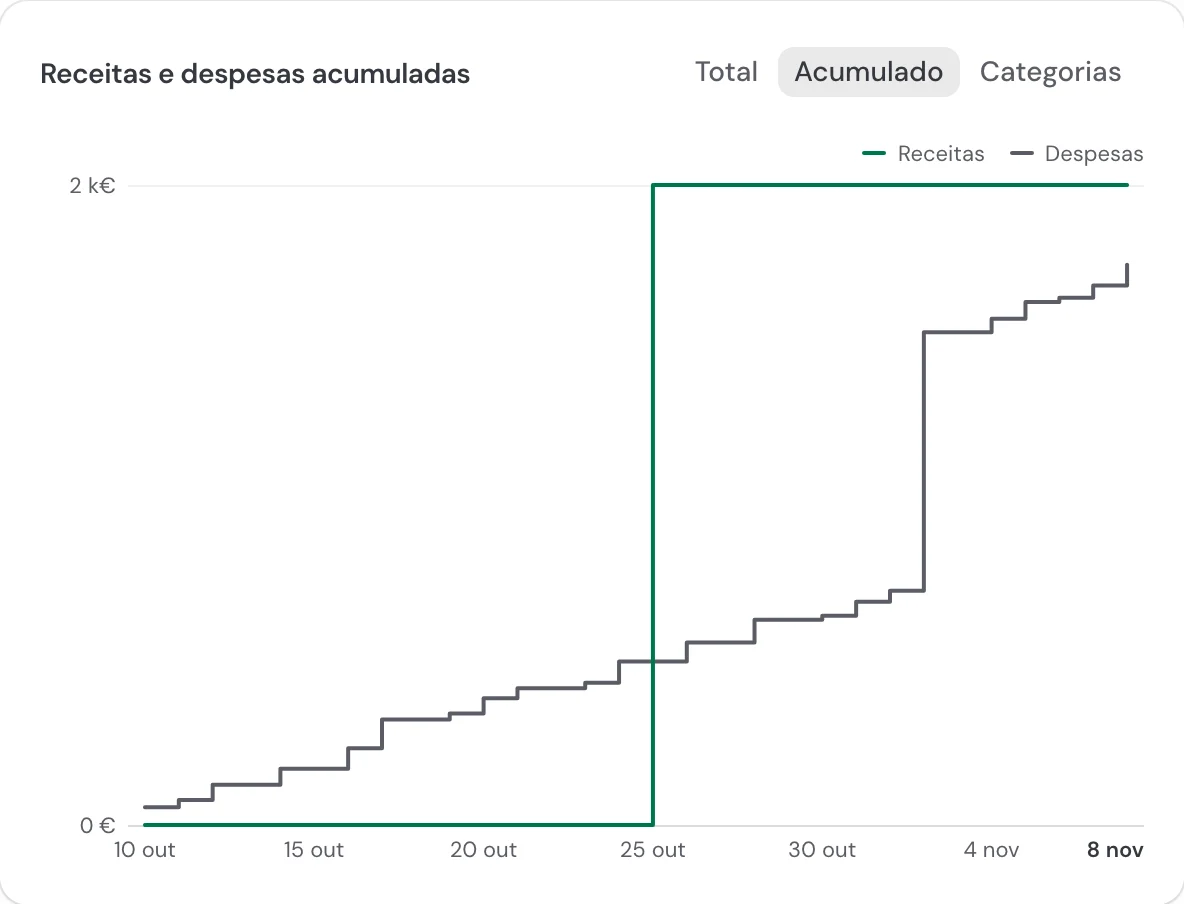
    The Running total view of the Cash flow chart adds up income and spending day by day across the period, and the gap between the two lines is what you had left by that day.

    How to use it

    1. In Cash flow, choose the period, for example This month.
    2. In the Over time chart, click Running total.
  3. Improvements and fixes (3)

    26 October to 1 November

    • Your card bill no longer counts twiceThe payment from your current account and the card bill, which the bank takes weeks after the statement, are now paired as a transfer. The bill no longer counts twice as spending or shows up as income on the card.
    • A price far from the market quote is flagged before you saveIf the price of a buy or sell is more than 20% off that day’s quote, you can correct it or save it anyway.
    • Redeem Portuguese savings certificates with the amount filled inEnter the units you redeemed and check the amount received.
  4. Track Portuguese property funds

    Property funds registered with the CMVM, Portugal’s market regulator, are now in the catalogue. Record your purchase and the holding’s value follows the unit price the fund publishes.

    How to use it

    1. In Investments, tap Add.
    2. Search for the fund by name or ISIN, choose it and record your purchase.
  5. Count a refund against the expense it covers

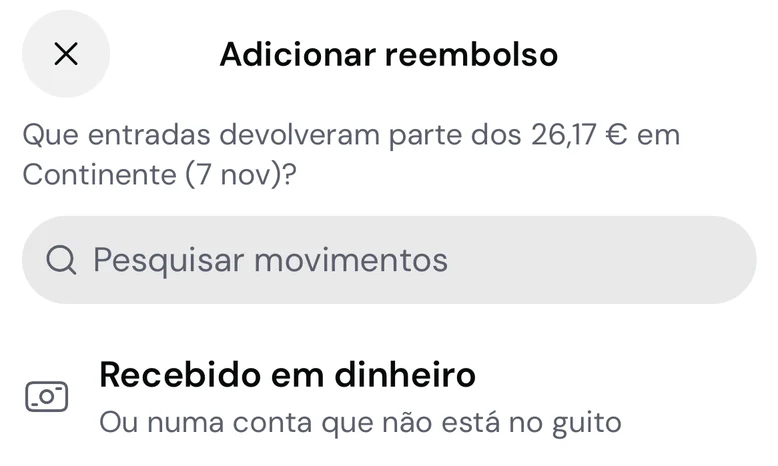
    Link money you got back, such as a friend’s share of a dinner, to the expense it belongs to. It then reduces that expense, in its own category and month, instead of counting as income. You can also record money someone paid you back in cash.

    How to use it

    1. In Activity, open the expense.
    2. Tap Add refund.
    3. Tap the incoming payment you received or, if you were paid back in cash, Received in cash.
  6. Improvements and fixes (2)

    19 to 25 October

    • Dividends and interest get their own categoryInvestment purchases and sales sit in a separate Investments group, and dividends and interest from connected brokers go straight to Dividends and interest.
    • Split a manual transaction as you create itSpread it across categories without saving it first and opening it again.
  7. Know what each bank syncs before you connect it

    Each bank shows whether it syncs the current account and the credit card, and what’s coming soon. If your bank isn’t available yet, ask to hear when it is.

    How to use it

    1. On Home, open Accounts and tap Add account: each bank shows whether it syncs the current account and the credit card.
    2. If your bank is under Coming soon, tap Notify me.
  8. See what your investments returned in each period

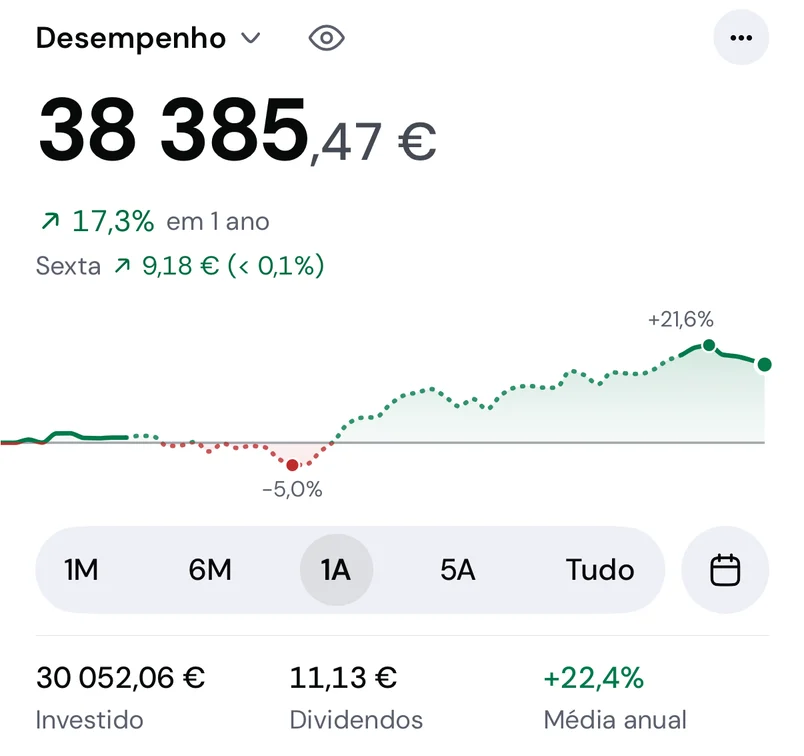
    The Performance view shows the period’s return as a percentage, dividends included, leaving out any money you put in or took out. With at least a year of history, each holding and the total also show the Annual return.

    How to use it

    1. In Investments, tap Market value above the chart and choose Performance.
    2. Choose the period with the buttons below the chart.
  9. US shares and crypto updated through the day

    Plus plan

    While the market is open, shares and ETFs on US exchanges and crypto update every 15 minutes, and today’s value follows the quote. There’s nothing you need to do.

  10. Improvements and fixes (1)

    12 to 18 October

    • Net worth charts right from the start of the periodAn account with no transactions at the start of the period no longer counts as zero until its first one.
  11. Record trades by forwarding your broker’s emails

    Plus plan

    For a broker that can’t be connected, forward the emails confirming each buy and sell to an address of your own, and the trades are recorded in your investments.

    How to use it

    1. Tap your photo at the top of Home, then Connections, New connection and “Your broker isn’t listed?”.
    2. Tap Create address, then Copy address.
    3. In your email, forward the broker’s emails confirming each buy and sell to that address.
  12. Improvements and fixes (3)

    5 to 11 October

    • Your Trading 212 holdings in about a minuteOnce the broker is connected, your holdings appear straight away, and gains show “Calculating” until every trade has come in.
    • Choose where each notification reaches youBy email or on your phone, topic by topic. Reminders about out-of-date balances and values move from email into the app, and you never get more than two optional emails in any 7 days.
    • Sign-in codes arrive by email againWeb only.

September 2026

  1. Record delistings, takeovers and fund conversions

    When a company leaves the stock market, is bought out for cash, or a fund is converted into another, the holding shows a note on what happened and is valued at what the event gave you. You can record the outcome so your portfolio reflects it.

    How to use it

    1. In Investments, tap the holding that shows the event note.
    2. Tap Record the outcome, choose the date and confirm.
  2. Improvements and fixes (3)

    28 September to 4 October

    • Choose one by one which emails you getEach email has its own switch in Settings, and a link to stop just that kind.
    • Asset and manual investment values without sudden jumpsBetween two valuations, the value follows a straight line. Before, the whole change landed on the day of the next valuation.
    • Fewer duplicates when you import a statementA transaction the bank words differently is still spotted as a duplicate.
  3. Improvements and fixes (3)

    21 to 27 September

    • The right numbers when you import an investment file“1,5” and “1.5” are no longer mixed up, and two identical rows both come in. A value that can’t be read is refused and shown to you, never guessed.
    • Opening balance and net worth from the date you choseEach account’s opening balance shows the day you entered, and your net worth history starts on that date.
    • A prompt to reconnect an account your bank dropped
  4. A warning when a saved purchase seems to have the wrong price

    Web only

    If the price of a saved purchase is far from that day’s quote, the holding shows a warning with both figures, so you can fix a mistyped quantity or price.

    How to use it

    1. In Investments, hover over the warning sign next to the holding’s name to see the recorded price and that day’s quote.
    2. If it’s wrong, open the holding and, under Transactions, delete the purchase and record it again with the right quantity and price.
  5. Improvements and fixes (3)

    14 to 20 September

    • The right amount invested after selling at a gainSelling part of a holding removes what the sold units cost, not what you received for them. The amount invested and the gain add up again.
    • Uploading the same CSV again no longer duplicates trades
    • Authorising at your bank is smootherYou’re back almost instantly after authorising. And if you cancel halfway, you can try again.
  6. Know whether the bank has already sent the transaction you’re adding

    Web only

    When you add a transaction by hand to a synced account, the form warns you if the bank has already sent one for the same amount within three days, and shows its date. You can still save.

    How to use it

    1. In Cash flow, click Add and choose an account connected to your bank.
    2. If the Already in guito warning appears, check the date of the transaction the bank sent before you save.
  7. Improvements and fixes (3)

    7 to 13 September

    • Recurring payments no longer announce bills you’ve paidThe next date takes the payments already made into account.
    • Loan instalments linked again to the bank paymentWhen the account you pay the loan from is connected to your bank.
    • A prompt to renew access when your bank revokes it
  8. Sign in with Apple on the web too

    Web only

    You can sign in with your Apple account, no password needed, just as you already could on iPhone.

    How to use it

    1. On the sign-in page, click Continue with Apple.
    2. Confirm in the Apple window.
  9. Split a transaction across several categories

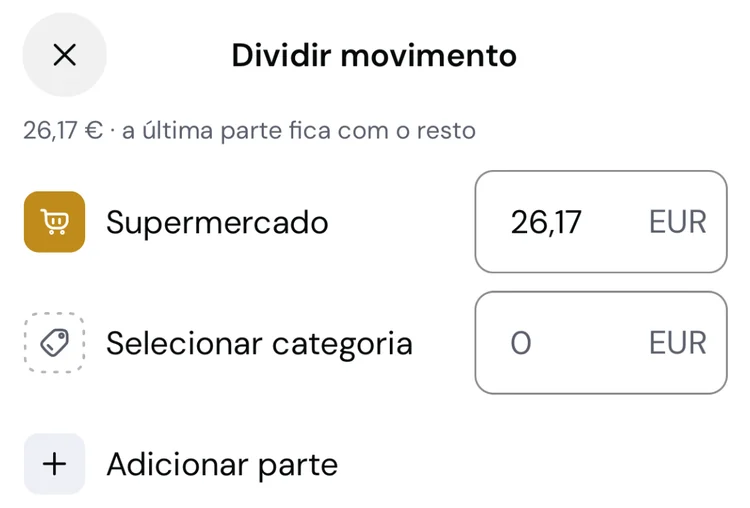
    Divide one transaction between several categories, each with its own amount. A supermarket run can be split between household and groceries, and each part counts towards its own category’s budget.

    How to use it

    1. Open the transaction, tap ⋯, then Split.
    2. Choose the category and amount of each part, using Add part for more, then tap Apply split.
    3. Tap Save.

August 2026

  1. Find transactions from all time, uncategorised or typed without accents

    See every transaction in a category since the very first, or only the ones left uncategorised, so you can sort them out. And search no longer depends on accents: “cafe” finds “Café”.

    How to use it

    1. In Activity, tap the period and choose All time.
    2. Tap Filters and, under Category, choose a category or Uncategorised.
  2. Improvements and fixes (2)

    31 August to 6 September

    • A new asset shows its current value, not its purchase price
    • Adding trades from an investment’s page works again